
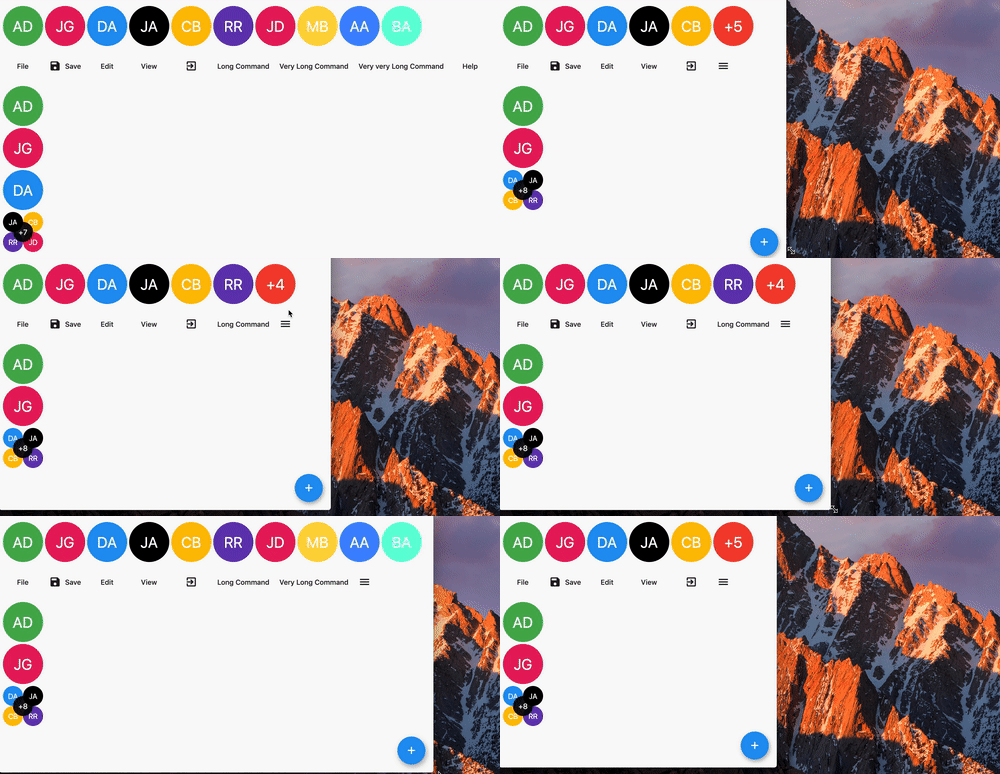
A widget displaying children in a line with an overflow indicator at the end if there is not enough space.

- Renders children horizontally or vertically.
- Has an overflow indicator builder so that you can display a widget showing the number of elements not rendered.
- Can either constrain the children to the size of the first child or let them have the size they want.
- Children can overlap each other by setting a negative spacing.
- Children can be displayed in several runs (rows or columns), like in a
Wrap. - Supports right-to-left layouts.
In the pubspec.yaml of your flutter project, add the following dependency:
dependencies:
  ...
  overflow_view:
In your library add the following import:
import 'package:overflow_view/overflow_view.dart';OverflowView(
// Either layout the children horizontally (the default)
// or vertically.
direction: Axis.horizontal,
// The amount of space between children.
spacing: 4,
// The widgets to display until there is not enough space.
children: <Widget>[
for (int i = 0; i < _counter; i++)
AvatarWidget(
text: avatars[i].initials,
color: avatars[i].color,
)
],
// The overview indicator showed if there is not enough space for
// all chidren.
builder: (context, remaining) {
// You can return any widget here.
// You can either show a +n widget or a more complex widget
// which can show a thumbnail of not rendered widgets.
return AvatarWidget(
text: '+$remaining',
color: Colors.red,
);
},
)There are two constuctors depending on what you want to do.
The OverflowView constructor will constrain all children to have the same size as the first one. This can be used for an avatar list for example.
The OverflowView.flexible constructor will let all children to determine their own size. This is less performant than the default one, but it's more flexible. This can be used for a menu bar for example.
By default, the children are displayed in a single line. Set maxRuns to display them in several runs, like in a Wrap: when a child doesn't fit at the end of a run, it starts a new one, until there are maxRuns runs. The overflow indicator is then displayed at the end of the last run.
OverflowView(
  // Display the children in two rows at most.
  maxRuns: 2,
  // The amount of space between children in a run.
  spacing: 4,
  // The amount of space between runs.
  runSpacing: 4,
  children: <Widget>[...],
  builder: (context, remaining) => Text('+$remaining'),
)
Both constructors support runs.
The children are laid out according to the ambient Directionality: in a right-to-left context, they go from right to left and the overflow indicator is on the left. You can override it with textDirection. Without any Directionality, the children go from left to right.
By default, the last children are hidden when there is not enough space. To hide the first ones instead, and keep the last ones visible (for a breadcrumb for example), reverse the children and the text direction:
// In a left-to-right context.
Align(
  alignment: Alignment.centerLeft,
  child: OverflowView(
    textDirection: TextDirection.rtl,
    children: <Widget>[
      for (final item in items.reversed) ItemWidget(item),
    ],
    // The hidden items are the first `remaining` ones.
    builder: (context, remaining) => Text('+$remaining'),
  ),
)
The children keep their order from left to right, and the overflow indicator is on the left. textDirection only changes how OverflowView places its children: their own text is still laid out from left to right.
In a right-to-left context, use TextDirection.ltr and Alignment.centerRight instead. The breadcrumb in the example handles both.
The Align lets the OverflowView be as wide as its children. Without it, if the OverflowView is forced to be wider than its children, they are aligned to its right edge, as in any right-to-left layout.
I'm working on my packages on my free-time, but I don't have as much time as I would. If this package or any other package I created is helping you, please consider to sponsor me. By doing so, I will prioritize your issues or your pull-requests before the others.
Please see the Changelog page to know what's recently changed.
Feel free to contribute to this project.
If you find a bug or want a feature, but don't know how to fix/implement it, please fill an issue.
If you fixed a bug or implemented a feature, please send a pull request.